Support
Login
To log in to TriMarketPlace, type your email address into the address bar.
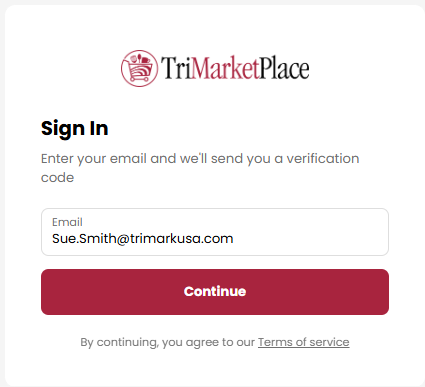
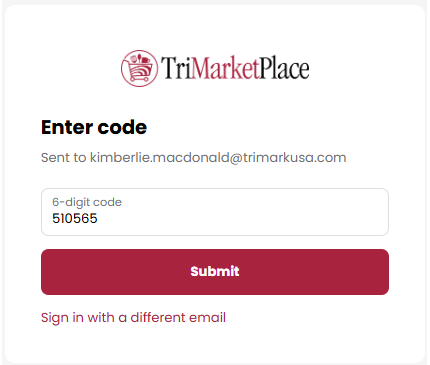
Click Continue to receive a one-time passcode at your email address (this may take up to 2 minutes). Enter the 6-digit code you receive, then click Submit.
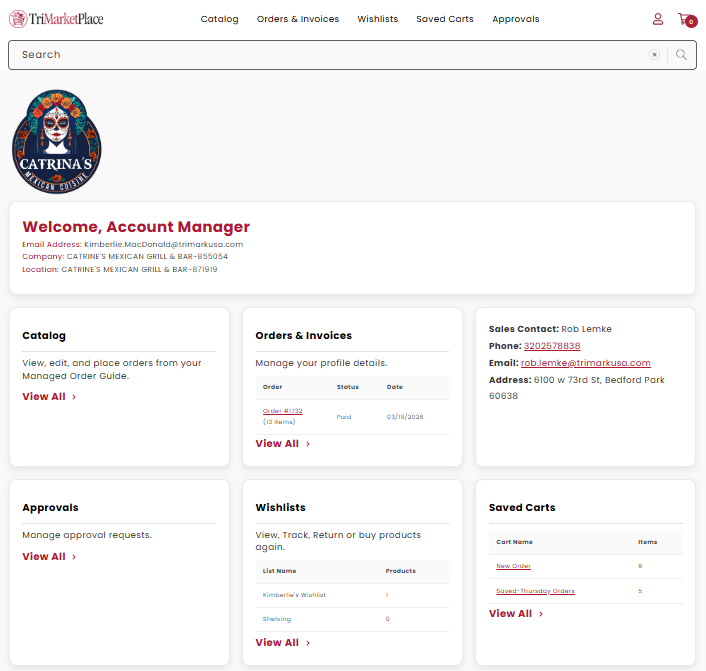
After your login is verified, you'll be directed to the Welcome page.
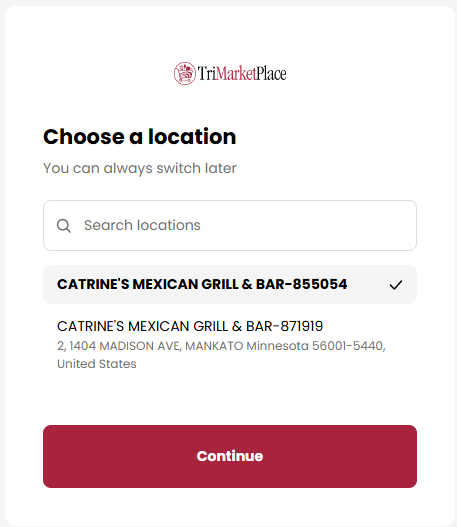
If you have multiple locations, you’ll be prompted to select your location before entering the Welcome page. You can update your location anytime by clicking the My Account link in the top right corner.
Catalog
Browse the product catalog by clicking the Catalog link in the top navigation.
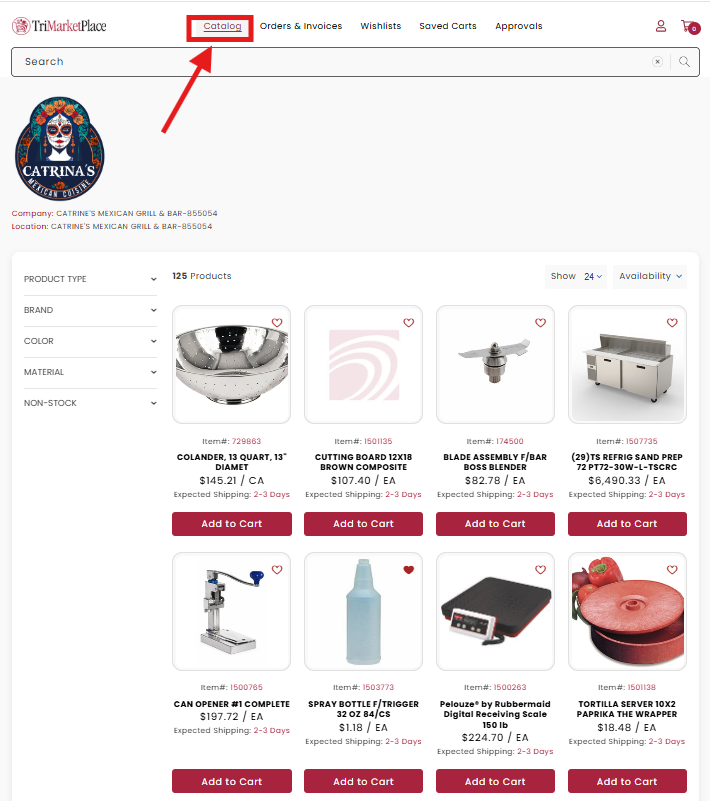
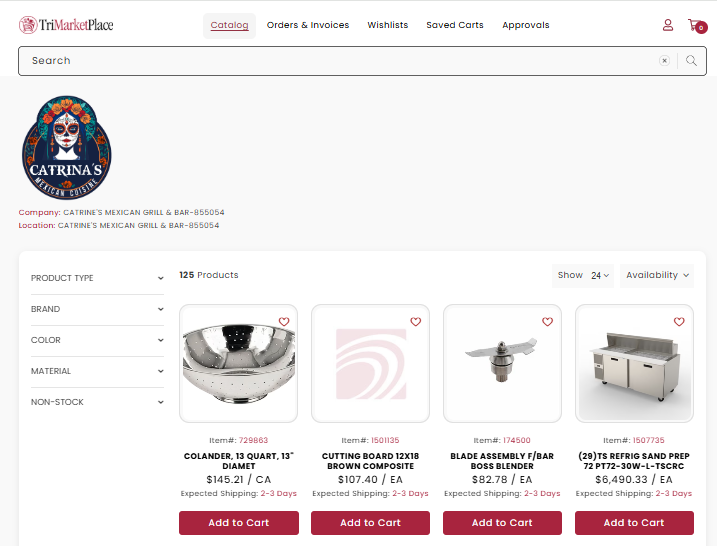
Click the video below.
Account
Click the Person icon in the top right corner to view your account details.
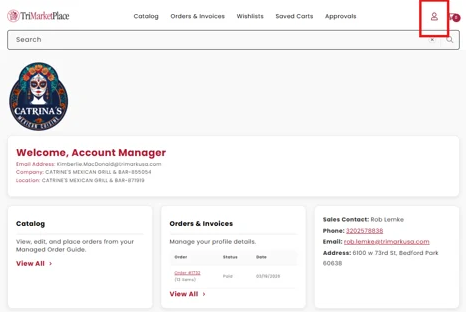
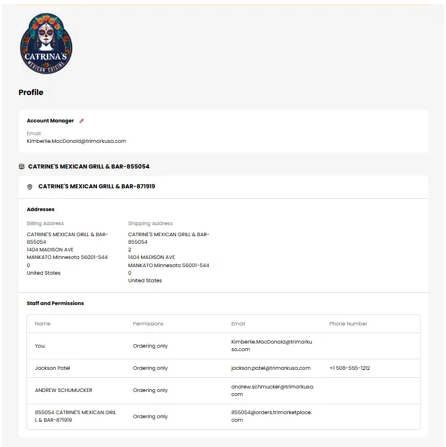
From here, you can view your account information and manage your details.
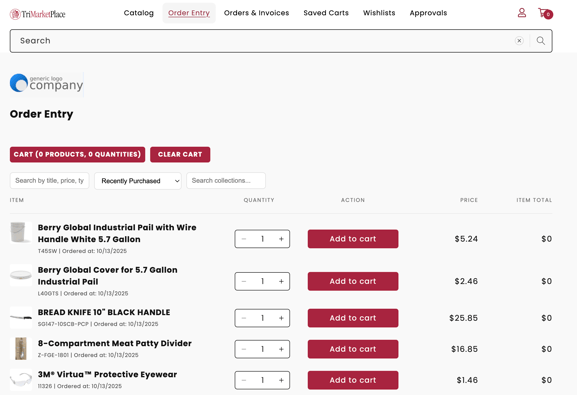
Order Entry
Easily place your order by clicking the Order Entry link in the top navigation.
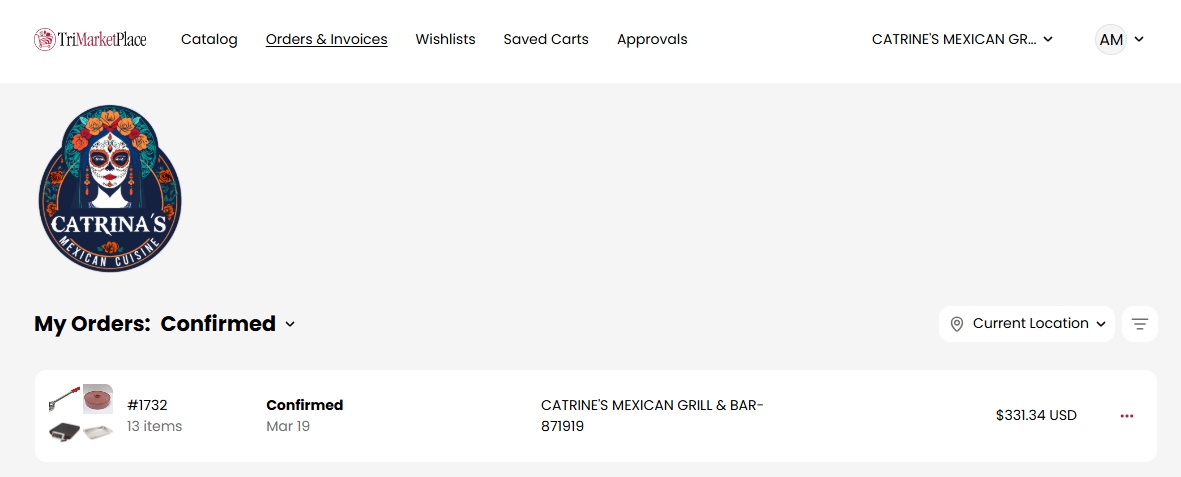
Orders & Invoices
Access your recent orders and check invoice status by selecting Orders & Invoices in the top navigation.
Click the video below.
Saved Carts
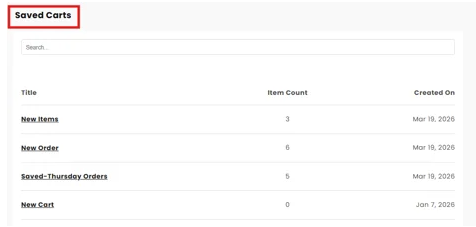
The Saved Cart feature allows users to save items added to the cart so you can return later and complete purchases — without needing to search for everything again. It’s a simple way to keep shopping convenient and organized.
Once items are saved to the cart, you can save by either using the mini-cart fly out menu, or the full cart.
Click the video to review.
Or follow these steps:
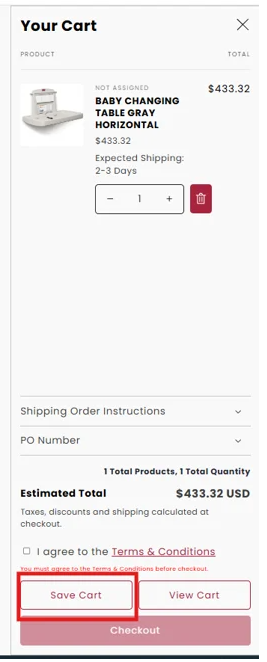
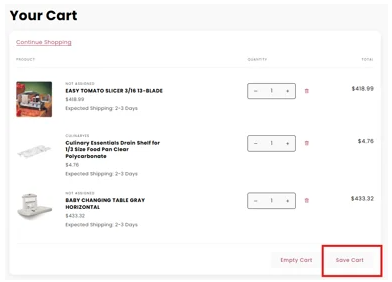
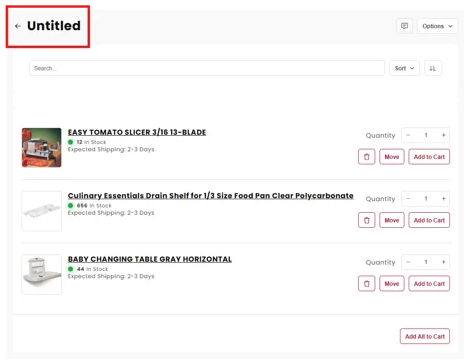
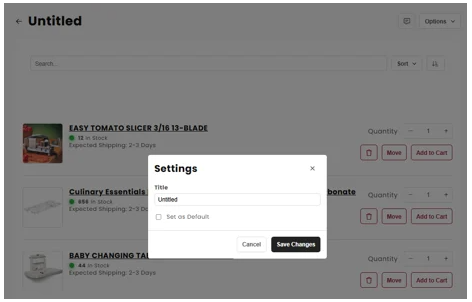
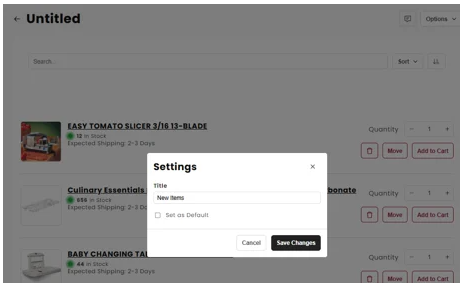
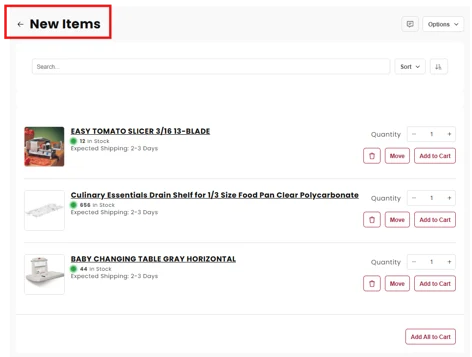
When you click the Save Cart button, you will go to the Save Cart page where you can name your new saved cart. Click on "Untitled" to rename.
Wishlists
The Wishlist allows users to save products frequently used for future reference — whether not ready to purchase yet or simply keeping track of favorites. It’s like your personal shopping list inside the website.
Add to Wishlist
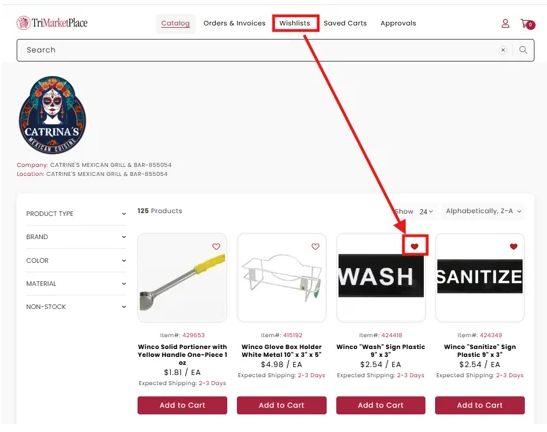
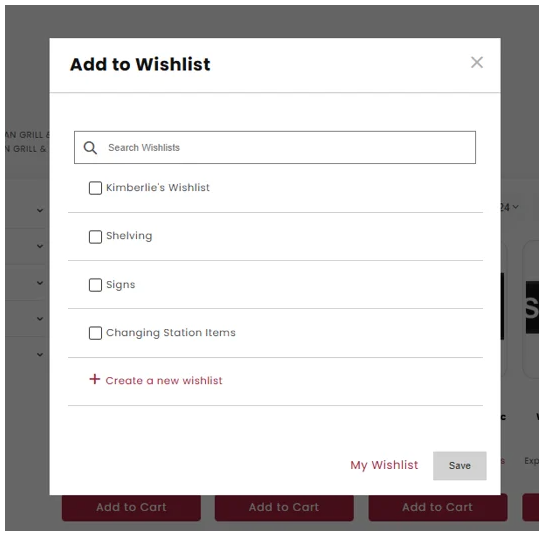
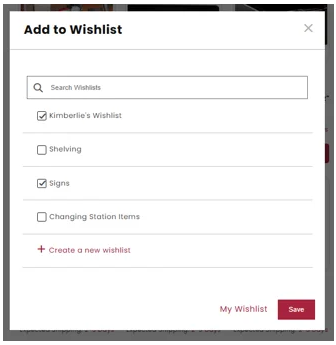
To add items to a Wishlist, simply click on the "heart" icon on a product and save to an existing list, or create a new list.
Click the video below.
Or follow these steps below:
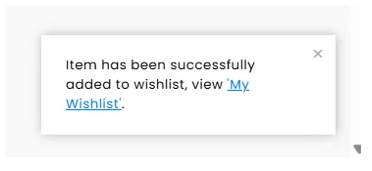
A confirmation notification will appear in the lower right corner after added to the wishlist.
To add items to multiple wishlists, select all wishlists you wish to add that item to.
Create a new Wishlist
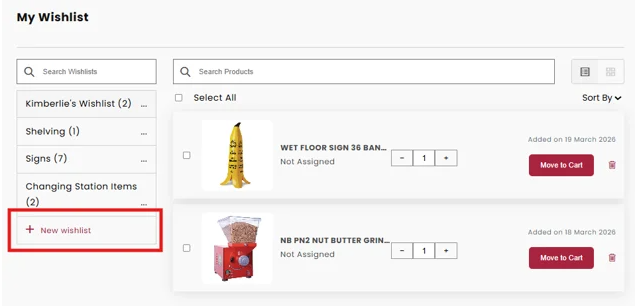
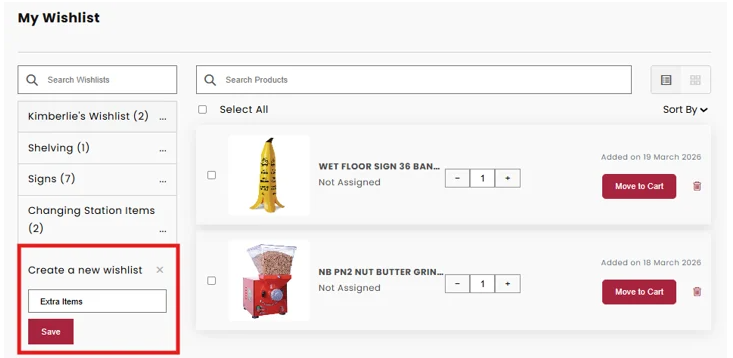
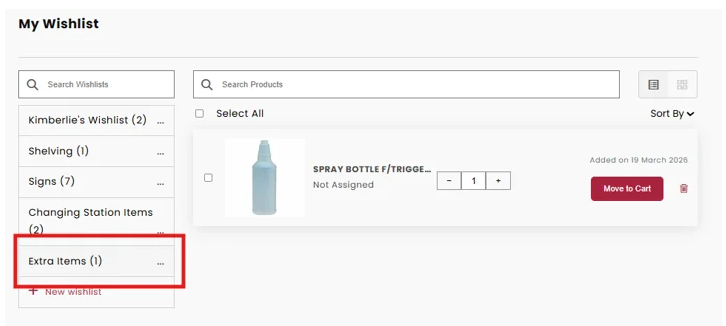
To create a new Wishlist, click on +New Wishlist.
Approvals
- When Approval is NOT Required
- No Approver Assigned:
You can place your order directly—no approval needed. - Order Below Threshold:
If your order total is below the set approval limit, it goes through automatically.
- When Approval is Required
Two-Tier (1 Approver)
- If your order amount is above the threshold, it goes to your Approver.
- If approved: You can submit the order.
- If rejected: You’ll get a notification, and the order won’t proceed.
Three-Tier (2 Approvers)
- Orders go to Approver 1 first, then Approver 2 (currently, all orders route to Approver 2).
- Both Approve: Order can be placed.
- Any Rejection: You’ll receive a rejection notice, and the order stops there.
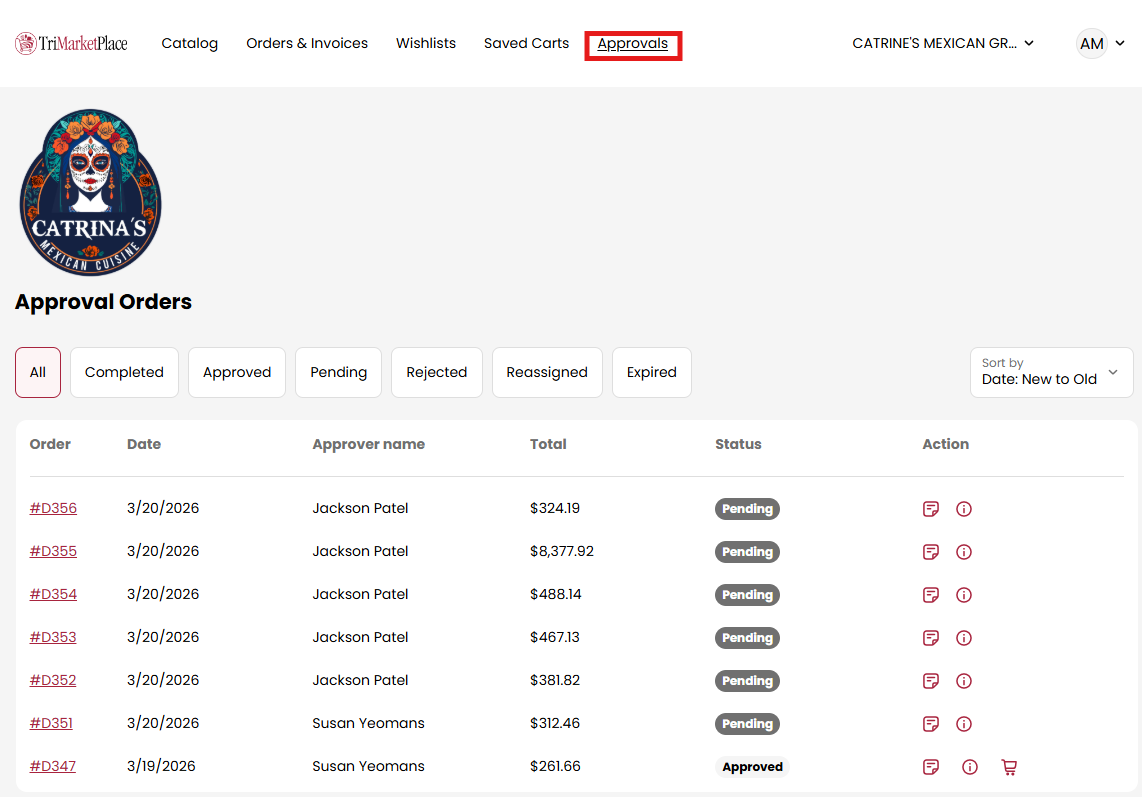
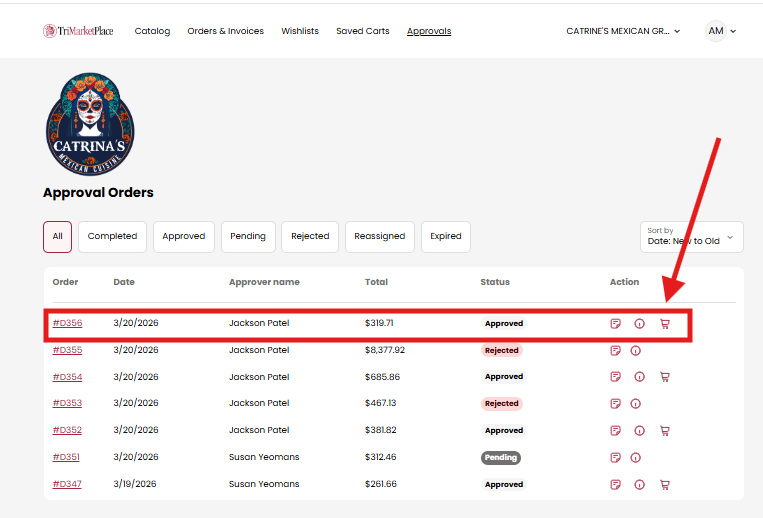
- Users can view all orders that require approval under Approvals in the top navigation bar.
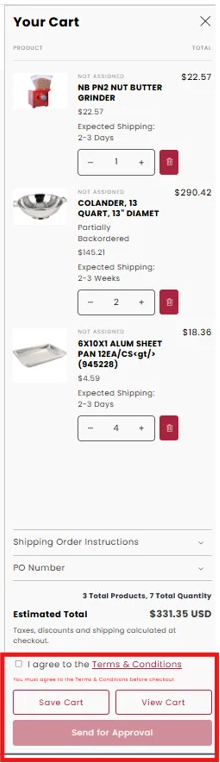
- If you are placing an order that is above the set threshold, the system prompts you to submit the order for approval.
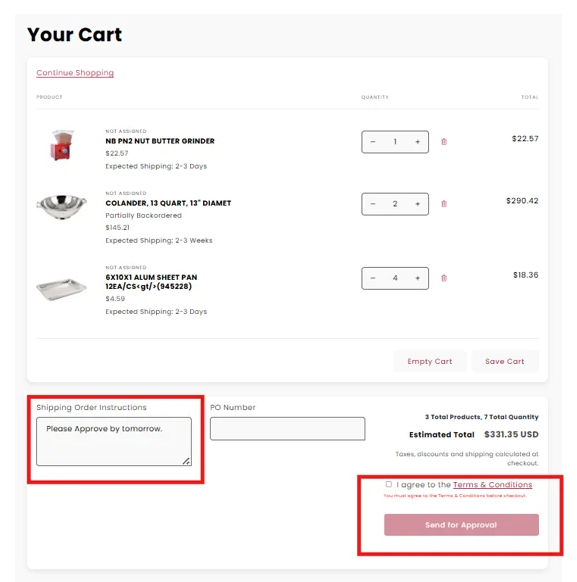
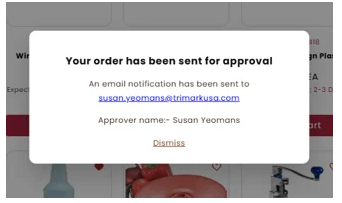
- When you submit an order for approval, a popup notification will appear confirming that your order has been sent for approval. Both End User and Approver will receive email notification with order details.
- Approver 1 will receive an email notification that a new order is awaiting their approval in their account. They can access the order directly by clicking on the View Order Details link in the email or logging into their account.
- Once logged into their account, Approver 1 can view all pending orders under the Approvals tab.
- Within the Approvals tab, Approver 1 can search for orders using various criteria, sort orders by date or status, and take the following actions: approve the order, edit the order quantity, reject the order, or view the order history.
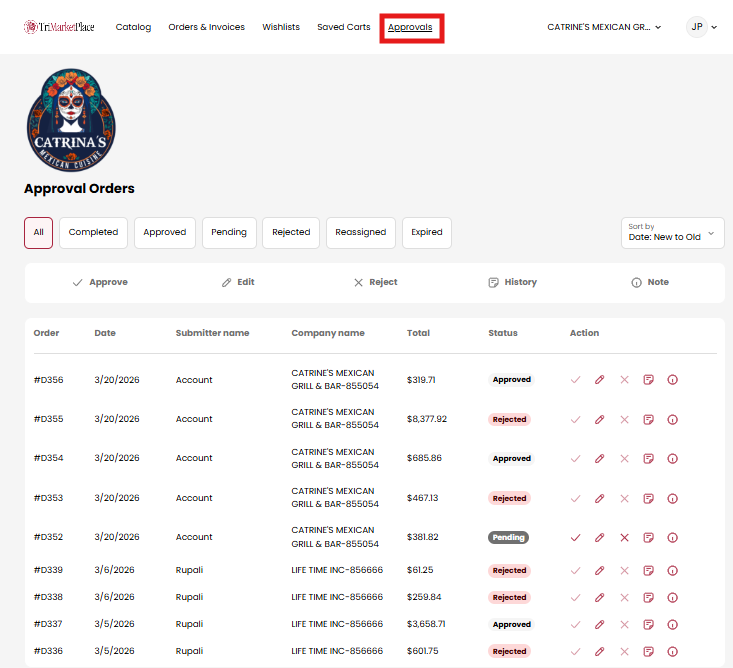
- After Approver 1 approves or rejects an order, the system automatically routes it to Approver 2 for review and approval. Status changes to Reassigned.
- Approver 2 will receive an email notification that a new order is awaiting their approval in their account.
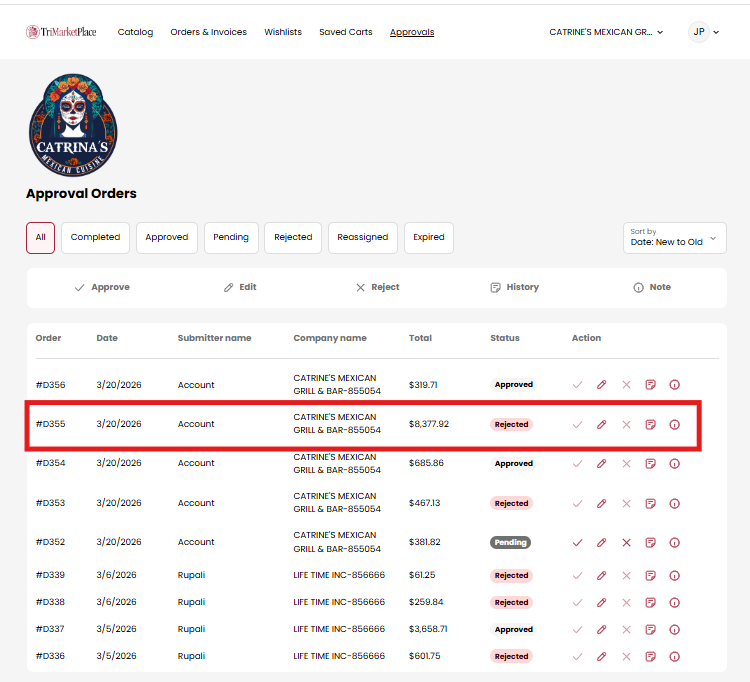
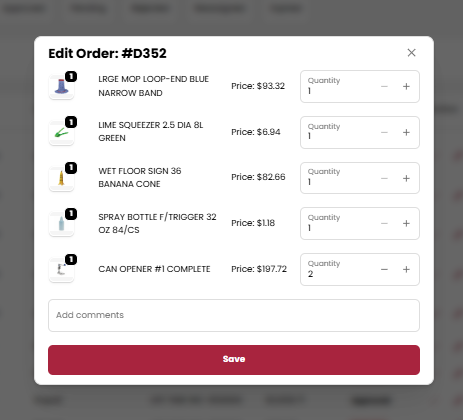
- Approver 2 can edit the order quantity, add comments, and save the changes. If you change the quantity, that will change the Total. On Approving the order, status should change to Approved.


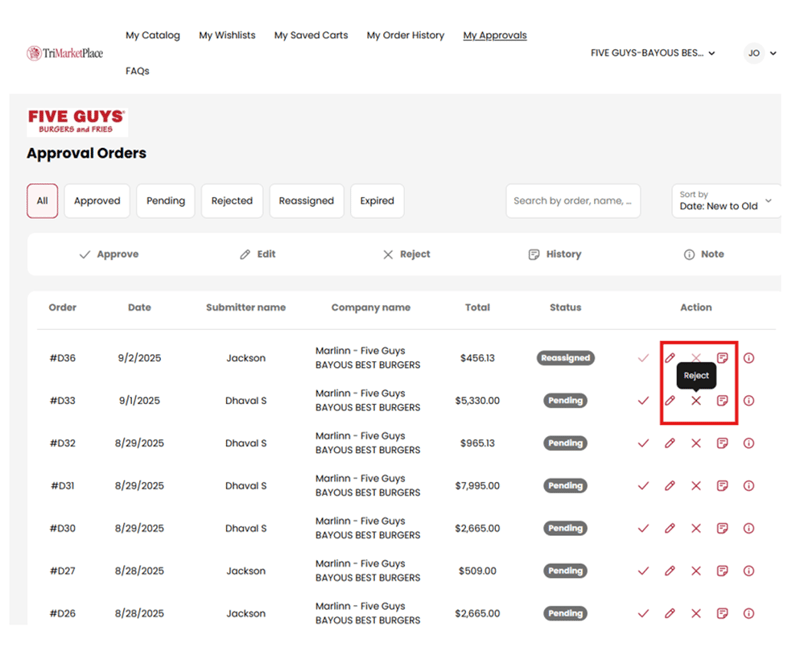
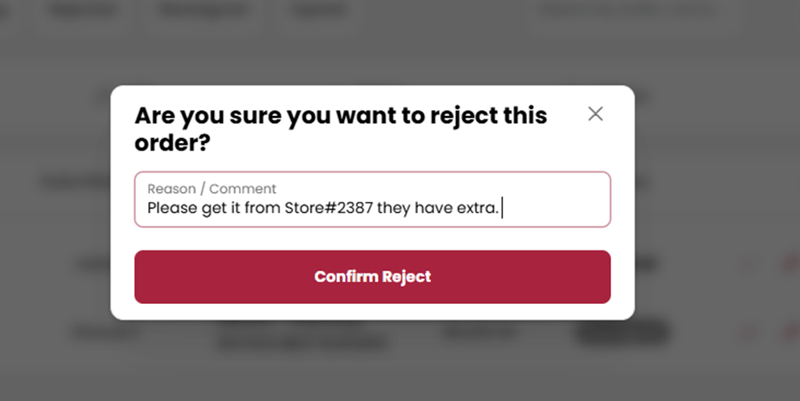
- Order Reject Scenario: If any Approver decides to reject the order, they can click the ‘Reject (X)’ icon. A prompt will appear requiring them to enter the reason for rejection before confirming.

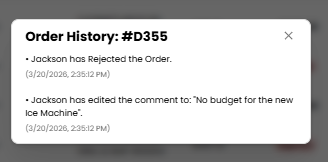
- End Users and Approvers can track the progress of an order by clicking the Order History.
- The End User will receive an email notification informing them that their order has been approved or rejected by Approver 2.
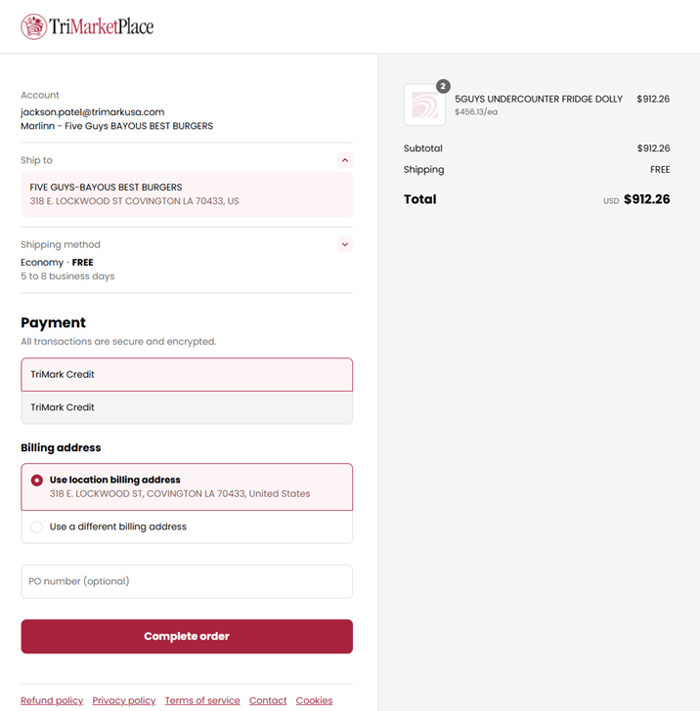
- For an approved order by Approver, the End User can log in to their account, navigate to the My Approvals tab, and click on the Order Number to proceed with checkout.
- Click video below for more information.